Desktop app
The app is a window onto the CLI for macOS and Windows. Every board is the answer to a CLI run, and every action shows the command it is about to run.
A window onto the CLI
The app is a small native shell: the window, a few OS integrations, and a bridge that runs the CLI as <node> <cli-entry> --frames <verb> … and draws the JSON frames that come back. A question the CLI would ask in a terminal becomes a dialog.
Nothing in the app reaches the network itself: git, gh and Claude Code all run inside the CLI child. The app also hides any control the running CLI version cannot back.
Get it
npx -y terum-skills@latest appOn macOS and Windows, setup runs this first and continues the wizard in the app. app needs a logged-in gh, because it downloads through gh release download. It fetches the build matching your CLI version, checks its published SHA-256 and GitHub’s build-provenance attestation, and discards it if either fails. It installs to ~/Applications/Terum Skills.app on macOS, and silently, per user, under %LOCALAPPDATA%\Terum Skills on Windows. Linux and WSL have no app.
Use app rather than the GitHub Releases page. The macOS bundle is not notarized and the Windows installer is unsigned, so a manual download runs into Gatekeeper (which reports the bundle as damaged) or SmartScreen, and skips the attestation check.
First run
The app runs the exact Node binary and CLI entry that app records in ~/.terum/skills/run/app.json, and never calls npx. Opened from the Dock or Spotlight before app has ever run, every board shows an error asking you to run terum-skills app from a terminal once. Doing so also repairs a window that is already open.
The window
The sidebar has two groups: Library (Global, your registered projects, Add project) and Team (Marketplace, Members). The footer opens Settings. The top bar holds Back and Forward, search, and status chips for an app update, a running eval and a running publish.
| Shortcut | Action |
|---|---|
⌘K | Search |
⌘, | Settings |
⌘R | Sync now |
⌘[ and ⌘] | Back and forward |
On Windows the same shortcuts use Ctrl. Every dialog prints the npx -y terum-skills@latest … command it is about to run, so you can run it yourself instead.
The boards
Library
The Library is one board per root: Global (~/.claude/skills) and each registered project, read with ls --local. Overview tiles sit above the cards; the Activation tile counts how many skills fired on this machine, from usage. A card for a folder on this machine has a switch that enables or disables the skill in Claude Code on this machine only.
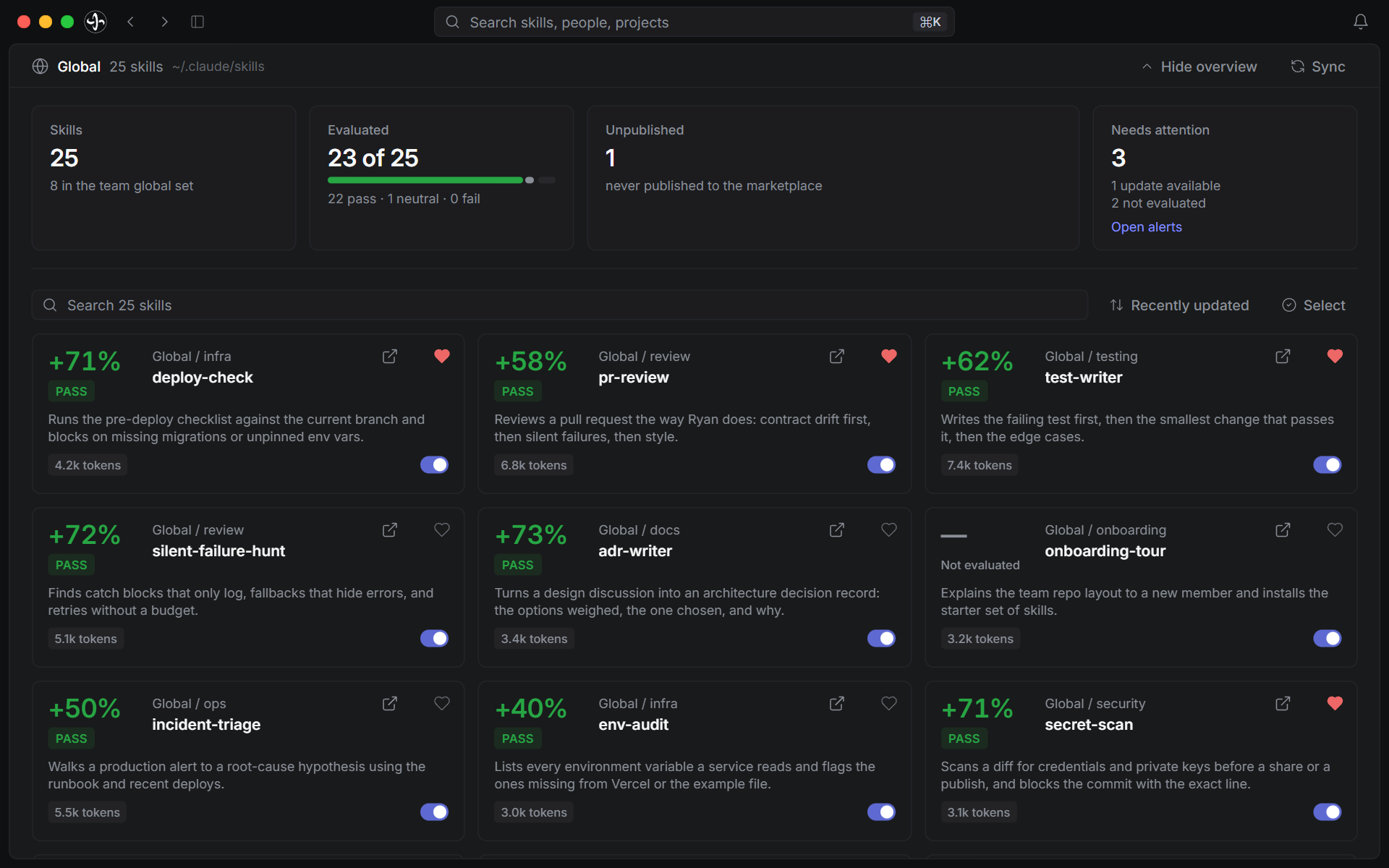
Each card’s menu runs one verb per item, such as Run eval, Install, Publish to team or Rename. Select lets you publish or evaluate several skills at once. Sync fetches the team, then offers to reconcile folders that match a team version. Dragging a folder onto the board registers it as a project.
Skill detail
Opening a card opens the skill’s page, with three working tabs: SKILL.md (the file, captioned with whether you are reading your own copy or the team’s published version), Evals (the receipt for this version, with earlier runs in History), and Activity (this skill’s firings over 30 days, 90 days or a year). A Quality tab is drawn but not shipped.
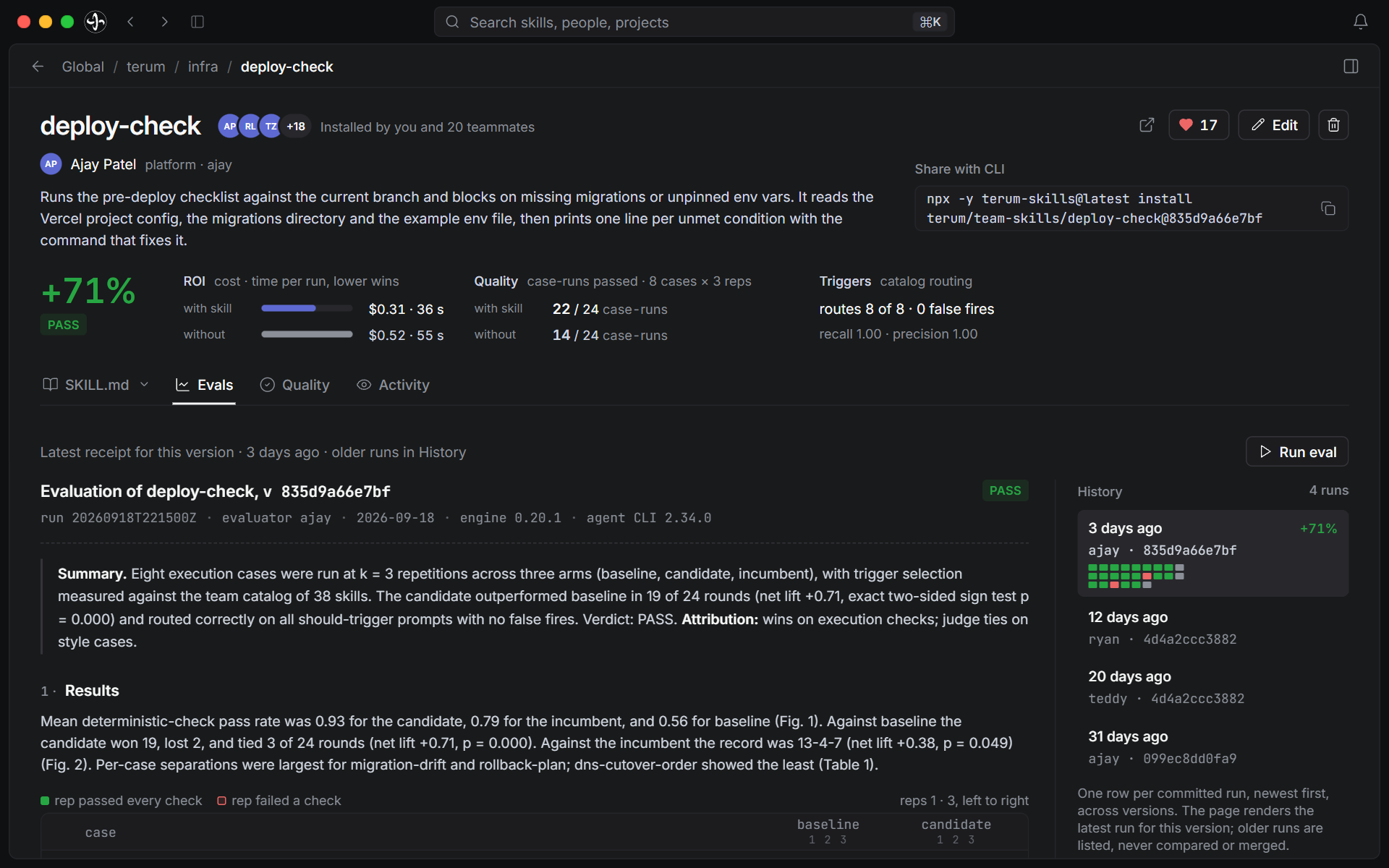
Every action on the page names the command it runs, and its dialog shows that command before you confirm. Unpublish asks you to type the skill’s name, because it removes every version for everyone on the team.
Marketplace
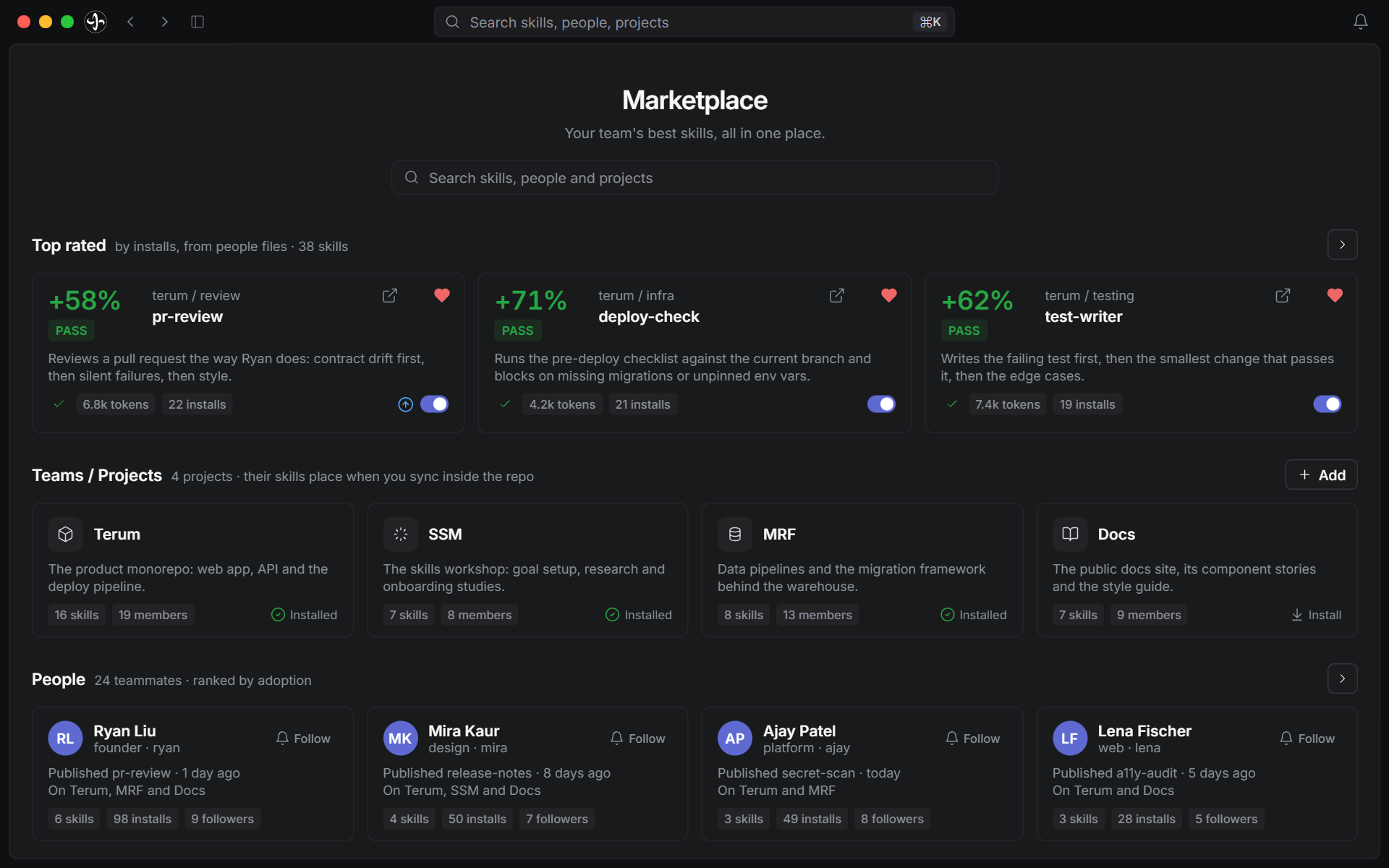
The Marketplace is the team’s published skills, read from your clone; nothing here fetches. The home board is a search box over four shelves: Top rated, Teams / Projects, People, and Browse by category. Top rated is ordered by install count, not by eval results. A project’s page installs the whole project (install project <name>), and a person’s page installs their curated list (install member <handle>). A project’s skills reach your machine only when you install them; a sync places nothing.
Members
Members lists the roster with each person’s GitHub permission, join date, skills, and when they were last seen. Invite runs invite and shows the join command to send. Pending invitations are not listed; a teammate appears once they join. Removing a member stays in the terminal (see Team admin).
Settings
Most Settings rows read CLI state; the app stores only its own preferences, such as theme, eval defaults and update policy. The Evals section sets the flags passed to every eval the app starts: repetitions per case, and the model for the arms and the judge, both sonnet by default. The publishing defaults cannot be changed in Settings, so every publish dialog opens on Marketplace only; pick another target inside the dialog.
Running evals
Run eval, on the card menu and the Evals tab, opens a dialog with a cost estimate from earlier runs when there are any. Run eval starts it now. Queue for overnight queues it instead, and the app runs the queue between 01:00 and 05:00 while it is open and idle. To evaluate several skills, select their cards, or use Evaluate pending in Settings ▸ Evals for every shared skill with no receipt for its current version.
An eval runs against the copy on this machine, so a skill with no local folder is refused. A top-bar chip shows progress and a Stop button; closing the dialog does not stop the run. One eval runs at a time, and the Evals tab refreshes to the new receipt when it finishes. See Running evals.
Sync and updates
Background sync
Reads never fetch. The app runs the fetch-only sync when it starts and whenever the window regains focus, at most once a minute and never while a write is running. There are no timers, so a window left open all afternoon fetches nothing until you come back to it.
Updates
The CLI never installs a release for you; the app’s own updates are the one exception. The app checks for a newer build (at most once a day, and only while your team is on GitHub), downloads and verifies it, and by default installs it when you quit. Settings ▸ Updates can switch that to Ask me or Overnight. From a terminal, app-update runs the same check, download and install.
After that, the app and the CLI advance separately; Settings ▸ About shows both versions. uninstall deletes the app on macOS; on Windows, remove it from Settings ▸ Apps.
Full reference on GitHub
- The desktop appdocs/guides/desktop-app.md
- Platformsdocs/reference/platforms.md